How to Automatically create a follow-up Task when a Lead is converted
How to Automatically Create a Follow-Up Task When a Lead Is Converted in Salesforce (With Apex Code)
In Salesforce, Lead conversion is a critical milestone in the sales lifecycle. When a Lead is converted, it typically becomes an Account, Contact, and optionally an Opportunity. At this important stage, many organizations require a follow-up Task to be automatically created so that sales representatives can continue engagement without missing any next steps.
This article explains in detail how to automatically create a follow-up Task when a Lead is converted using Apex code, including trigger logic, best practices, bulkification, and testing.
Why Create a Follow-Up Task After Lead Conversion?
When a Lead is converted:
- Sales teams may need to schedule a call.
- An onboarding email may need to be sent.
- A meeting may need to be arranged.
- A qualification or documentation process may begin.
Automating Task creation ensures:
- No manual errors
- Consistent sales process
- Improved productivity
- Better CRM data hygiene
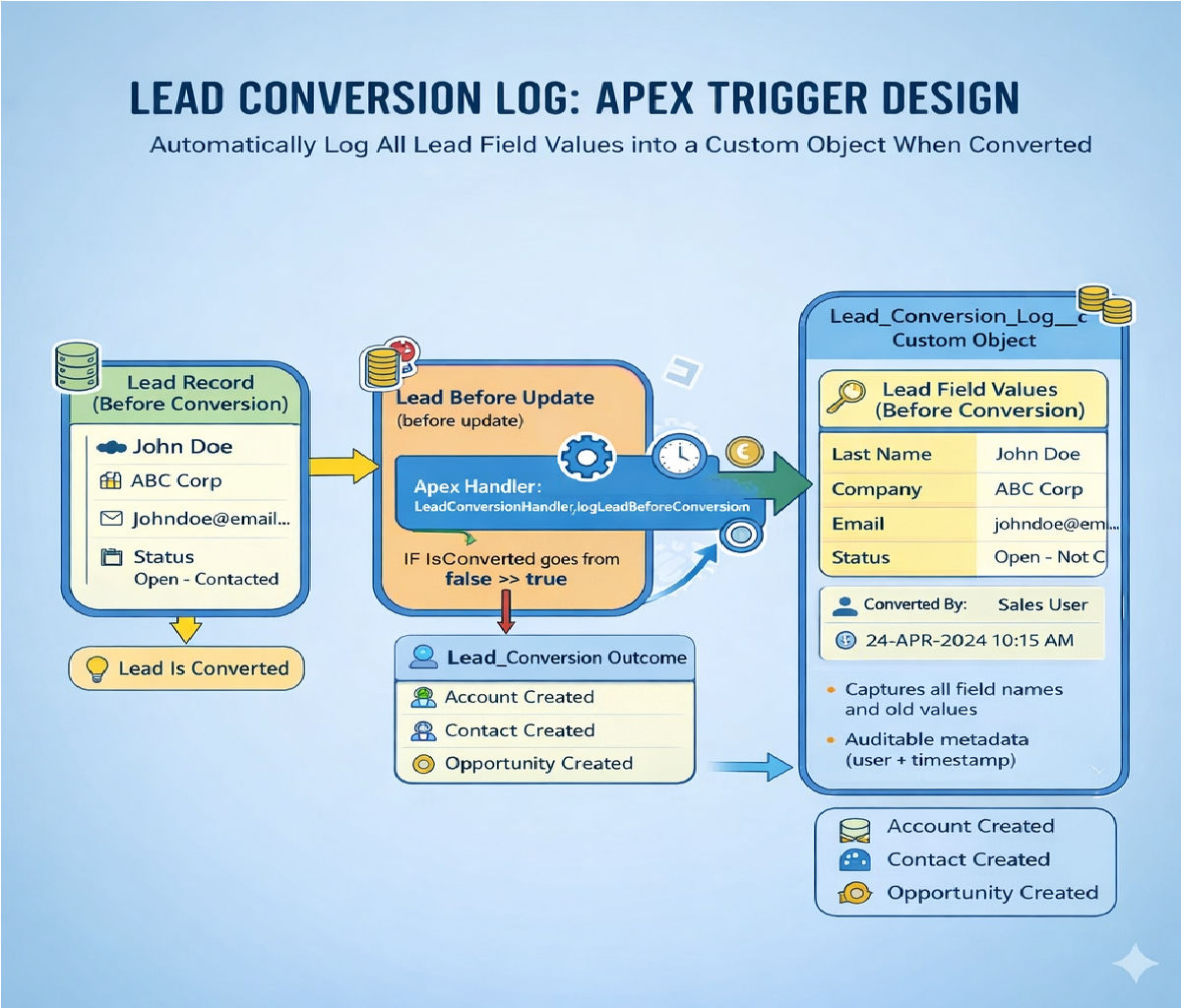
Instead of relying on manual task creation, we can use an Apex Trigger on Lead to automatically generate a follow-up Task once the Lead’s IsConverted field becomes true.
Understanding Lead Conversion in Salesforce
When a Lead is converted:
IsConvertedbecomestrueConvertedAccountIdis populatedConvertedContactIdis populatedConvertedOpportunityIdmay be populated- The Lead becomes read-only
Important: The conversion happens through an update operation. Therefore, we must use an after update trigger to detect conversion.
Approach Overview
We will:
- Create an Apex Trigger on Lead
- Detect when
IsConvertedchanges fromfalsetotrue - Create a Task related to:
- The newly created Contact
- Or the Opportunity
- Insert tasks in bulk-safe manner
- Write a proper test class
Step 1: Apex Trigger to Create Follow-Up Task
Below is the complete trigger code.
LeadFollowUpTaskTrigger
trigger LeadFollowUpTaskTrigger on Lead (after update) { List<Task> taskList = new List<Task>(); for (Lead ld : Trigger.new) { Lead oldLead = Trigger.oldMap.get(ld.Id); // Check if Lead was just converted<br> if (!oldLead.IsConverted && ld.IsConverted) { Task followUpTask = new Task(); followUpTask.Subject = 'Follow up with converted lead';<br> followUpTask.Priority = 'High';<br> followUpTask.Status = 'Not Started';<br> followUpTask.ActivityDate = Date.today().addDays(2); // Assign task to lead owner<br> followUpTask.OwnerId = ld.OwnerId; // Relate task to the newly created Contact<br> followUpTask.WhatId = ld.ConvertedOpportunityId;<br> followUpTask.WhoId = ld.ConvertedContactId; taskList.add(followUpTask);<br> }<br> } if (!taskList.isEmpty()) {<br> insert taskList;<br> }<br>}Code Explanation
1. Trigger Event
trigger LeadFollowUpTaskTrigger on Lead (after update)We use after update because Lead conversion is processed as an update operation.
2. Detecting Conversion
if (!oldLead.IsConverted && ld.IsConverted)This condition ensures:
- The Lead was not converted before.
- It is now converted.
- Prevents duplicate Task creation.
3. Creating the Task
Task followUpTask = new Task();We define:
- Subject
- Priority
- Status
- Due date
- Owner
- Related record
4. Relationship Fields
WhoId→ ContactWhatId→ Opportunity
When Lead is converted:
ConvertedContactId→ Used for WhoIdConvertedOpportunityId→ Used for WhatId
This properly links the Task.
Bulkification Best Practices
The trigger:
- Uses a list (
taskList) - Inserts once outside loop
- Avoids SOQL inside loop
- Avoids DML inside loop
This ensures:
- It works for bulk conversions
- It avoids governor limits
- It supports data loader operations
Optional Enhancement: Using Handler Class (Best Practice)
In enterprise environments, triggers should be lightweight. Logic should move to a handler class.
Step 2: Trigger with Handler Pattern
Trigger
trigger LeadFollowUpTaskTrigger on Lead (after update) {<br> if (Trigger.isAfter && Trigger.isUpdate) {<br> LeadFollowUpTaskHandler.createTasks(Trigger.new, Trigger.oldMap);<br> }<br>}Handler Class
public class LeadFollowUpTaskHandler { public static void createTasks(List<Lead> newLeads, Map<Id, Lead> oldMap) { List<Task> taskList = new List<Task>(); for (Lead ld : newLeads) { Lead oldLead = oldMap.get(ld.Id); if (!oldLead.IsConverted && ld.IsConverted) { Task t = new Task(<br> Subject = 'Follow up after lead conversion',<br> Status = 'Not Started',<br> Priority = 'High',<br> ActivityDate = Date.today().addDays(3),<br> OwnerId = ld.OwnerId,<br> WhoId = ld.ConvertedContactId,<br> WhatId = ld.ConvertedOpportunityId<br> ); taskList.add(t);<br> }<br> } if (!taskList.isEmpty()) {<br> insert taskList;<br> }<br> }<br>}Step 3: Writing a Test Class
Salesforce requires minimum 75% code coverage.
Test Class
@isTest<br>public class LeadFollowUpTaskHandlerTest { @isTest<br> static void testLeadConversionTaskCreation() { // Create Lead<br> Lead testLead = new Lead(<br> LastName = 'Test Lead',<br> Company = 'Test Company'<br> );<br> insert testLead; // Convert Lead<br> Database.LeadConvert lc = new Database.LeadConvert();<br> lc.setLeadId(testLead.Id);<br> lc.setDoNotCreateOpportunity(false);<br> lc.setConvertedStatus('Closed - Converted'); Database.LeadConvertResult result = Database.convertLead(lc); System.assert(result.isSuccess()); // Verify Task Created<br> List<Task> tasks = [<br> SELECT Id, Subject <br> FROM Task <br> WHERE WhoId = :result.getContactId()<br> ]; System.assert(tasks.size() > 0);<br> }<br>}Advanced Enhancements
You can improve automation by:
1. Custom Due Date Logic
ActivityDate = Date.today().addDays(5)Or based on Lead Rating.
2. Dynamic Task Assignment
Assign to:
- Opportunity Owner
- Account Owner
- Queue
3. Custom Metadata Configuration
Instead of hardcoding:
- Subject
- Priority
- Days offset
Store in Custom Metadata for flexibility.
Alternative Approaches (Without Code)
Although this article focuses on Apex, Salesforce also allows:
- Flow (Record-Triggered Flow)
- Process Builder (legacy)
- Workflow Rule (legacy)
However, Apex is preferred when:
- Complex logic is required
- Enterprise architecture is followed
- Custom conditions are needed
- Bulk performance matters
Common Mistakes to Avoid
- Using before update trigger
- Not checking oldMap
- Inserting inside loop
- Hardcoding Converted Status without checking org values
- Ignoring bulk processing
Governor Limits Consideration
Salesforce limits:
- 150 DML per transaction
- 100 SOQL queries
- 10,000 rows per query
Our solution:
- Uses 1 DML
- Uses 0 SOQL
- Is fully bulk safe
Real-World Use Case Example
Imagine:
A company converts 200 leads via Data Loader.
With this trigger:
- 200 tasks are created automatically.
- Each task is linked to respective contact.
- Sales reps receive follow-up reminders instantly.
Without automation:
- Sales reps manually create tasks.
- Leads may be forgotten.
- Revenue opportunities may be lost.
Security Considerations
- Ensure users have Task create permission.
- Consider using "with sharing" in handler class.
- Validate field-level security if needed.
Deployment Steps
- Write trigger in sandbox.
- Write test class.
- Run tests.
- Deploy using:
- Change Sets
- VS Code + SFDX
- DevOps Center
Final Thoughts
Automatically creating a follow-up Task when a Lead is converted ensures a structured and reliable sales process. By using an Apex after-update trigger and properly checking the IsConverted field, you can guarantee that every converted Lead results in timely follow-up actions.
The solution provided:
- Is bulk-safe
- Follows best practices
- Includes test coverage
- Uses handler pattern
- Prevents duplicate tasks
This approach is ideal for organizations that require strong CRM governance and automated sales workflows.
Tags:
Related Posts