How do you make an input field mandatory before form submission?
How Do You Make an Input Field Mandatory Before Form Submission?
Creating web forms is one of the most fundamental tasks in front-end development. Whether you’re building a login page, signup form, checkout page, comment box, or any other user-input interface, ensuring that certain fields are mandatory is crucial. Mandatory fields prevent incomplete submissions, improve data accuracy, and make sure that the form contains all the information needed for processing.
In HTML and JavaScript, there are multiple ways to enforce required input fields. Some methods rely purely on browser-level validation, while others incorporate JavaScript for custom handling or server-side validation for added security.
In this comprehensive guide, you’ll learn:
- Why required fields are important
- HTML methods for marking input fields as mandatory
- JavaScript-based validation
- Advanced validation logic
- Preventing form submission until validation passes
- Accessibility best practices
- Common mistakes developers make
- Complete working example
Let’s begin with the simplest and most widely used method.
⭐ 1. Using the HTML required Attribute (Easiest & Most Common Method)
The most straightforward way to make an input field mandatory is by using the HTML5 required attribute. When this attribute is added to an input element, the browser automatically prevents form submission unless the field is filled in.
✔ Basic Example
<form>
  <label for="name">Your Name:</label>
  <input type="text" id="name" name="name" required>

  <button type="submit">Submit</button>
</form>
✔ How This Works
- When the user clicks Submit, the browser checks whether the input is empty.
- If empty, it displays a built-in validation message such as
“Please fill out this field.” - The form does not submit until the field is completed.
This method is extremely useful because it:
- Requires no JavaScript
- Is supported by all modern browsers
- Promotes consistent UX across devices
- Is simple to implement
Because of its simplicity and reliability, the required attribute is the recommended method for basic mandatory fields.
⭐ 2. Making Different Input Types Required
The required attribute works on nearly all form elements:
📌 Text Field
<input type="text" required>
📌 Email Field
<input type="email" required>
The browser will not only ensure it is filled, but also check for a valid email format.
📌 Radio Buttons (Group Must Have a Selection)
<input type="radio" name="gender" value="male" required> Male
<input type="radio" name="gender" value="female"> Female
At least one option must be selected.
📌 Checkboxes
<input type="checkbox" id="terms" required> I agree to the terms
The user cannot submit without checking the box.
📌 Select Dropdown
<select required>
  <option value="">Select a country</option>
  <option value="IN">India</option>
  <option value="US">USA</option>
</select>
If the first option is empty, the browser treats it as unselected.
⭐ 3. Custom JavaScript Validation (More Control Over Behavior)
Although the required attribute is very powerful, sometimes you need extra control—for example:
- Displaying custom error messages
- Styling the input field on error
- Running multiple validation conditions
- Validating in real-time (while typing)
In such cases, JavaScript validation becomes essential.
✔ JavaScript Validation Example
<form id="myForm">
  <label>Email:</label>
  <input type="email" id="email" required>

  <button type="submit">Submit</button>
</form>

<script>
document.getElementById("myForm").addEventListener("submit", function(event) {
    let email = document.getElementById("email");

    if (email.value.trim() === "") {
        alert("Email is required!");
        email.style.border = "2px solid red";
        event.preventDefault(); // stops form submission
    }
});
</script>
✔ What This Code Does
- Listens for the submit event
- Checks if the input field is empty
- Displays a custom alert message
- Adds a red border to highlight the issue
- Uses
event.preventDefault()to stop submission
This gives the developer full control over the validation behavior.
⭐ 4. Real-Time Validation (Checking While Typing)
Users prefer getting feedback instantly rather than after pressing the submit button. Real-time validation improves user experience significantly.
✔ Real-Time Example
<input type="text" id="username" placeholder="Enter username" required>
<p id="error"></p>

<script>
let username = document.getElementById("username");
let error = document.getElementById("error");

username.addEventListener("input", function() {
    if (username.value.trim() === "") {
        error.textContent = "This field cannot be empty!";
        error.style.color = "red";
    } else {
        error.textContent = "";
    }
});
</script>
Why Real-Time Validation Helps:
- Users know what to fix instantly
- Reduces user frustration
- Improves form accuracy
- Helps on mobile where typing is slower
⭐ 5. Using novalidate When You Want Custom Validation Only
Sometimes developers prefer to disable the browser's default validation. In such cases, the novalidate attribute is added to the form.
✔ Example
<form id="customForm" novalidate>
   <input type="text" id="fullname" required>
   <button type="submit">Submit</button>
</form>
Now the browser will ignore the required attribute, and you must handle validation manually in JavaScript.
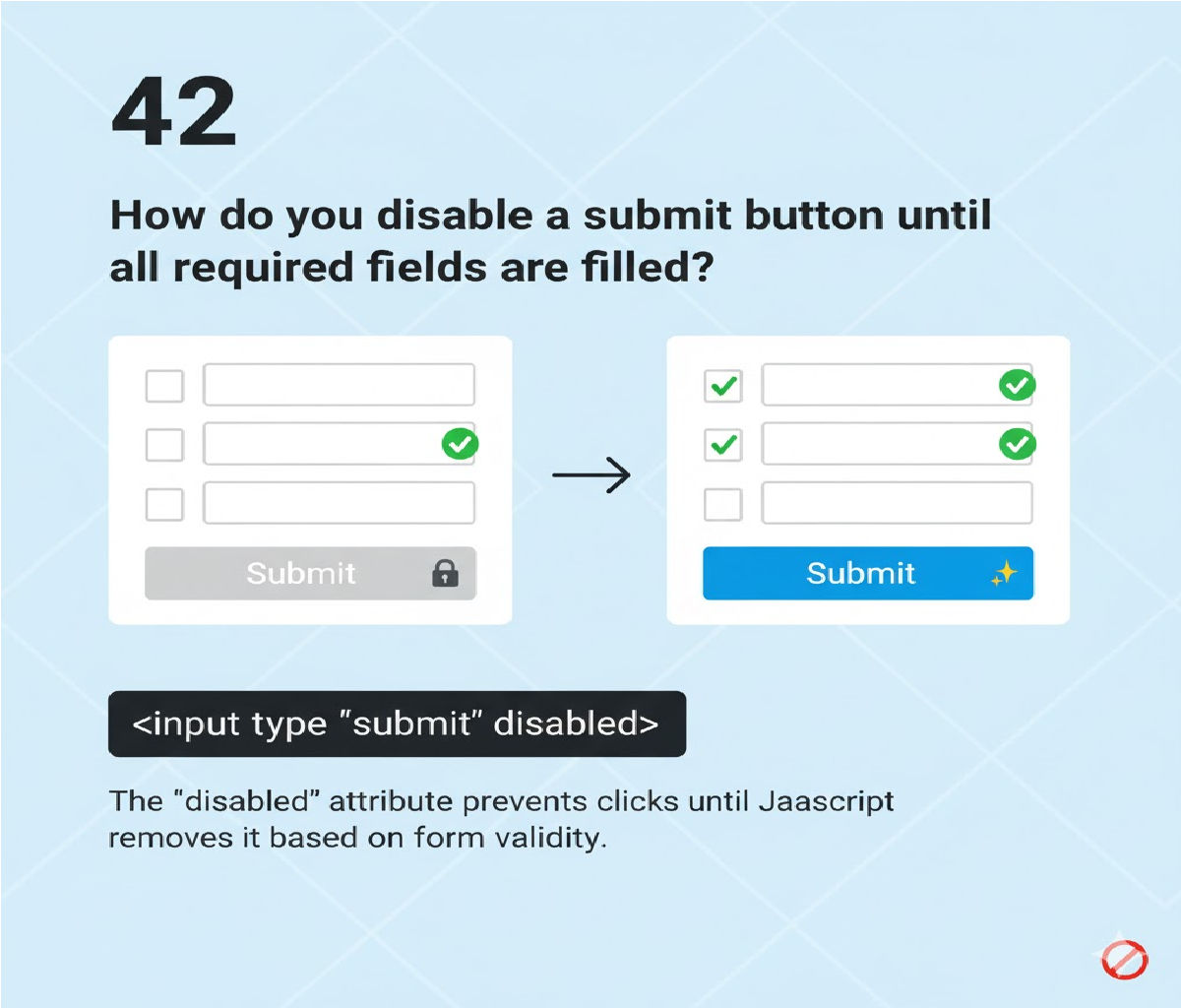
⭐ 6. Preventing Form Submission Until All Required Fields Pass Validation
A complete solution often checks multiple fields at once.
✔ Multi-Field Validation Example
<form id="signupForm">
  <input type="text" id="name" placeholder="Name" required>
  <input type="email" id="email" placeholder="Email" required>
  <input type="password" id="password" placeholder="Password" required>
  <button type="submit">Register</button>
</form>

<script>
document.getElementById("signupForm").addEventListener("submit", function(event) {

    let name = document.getElementById("name");
    let email = document.getElementById("email");
    let password = document.getElementById("password");

    if (name.value.trim() === "" ||
        email.value.trim() === "" ||
        password.value.trim() === "") {

        alert("Please fill in all required fields!");
        event.preventDefault();
    }
});
</script>
This pattern ensures that users must complete every important field before proceeding.
⭐ 7. Styling Required Fields for Better User Interaction
A good form visually indicates required fields to avoid confusion.
✔ Example CSS
input:required {
  border-left: 3px solid red;
}
When paired with placeholders like:
<input type="text" required placeholder="Name (required)">
…it becomes easy for users to understand which fields they must complete.
⭐ 8. Accessibility Guidelines for Required Fields
Screen readers and visually impaired users rely on semantic cues.
Best Practices:
✔ Add aria-required="true" (optional but helpful)
<input type="text" aria-required="true" required>
✔ Always pair inputs with <label>
✔ Do not rely on color alone to indicate required fields
✔ Include instructions at the top of the form
These steps make your forms accessible to everyone.
⭐ 9. Server-Side Validation: Why It’s Still Necessary
Even with strong front-end validation:
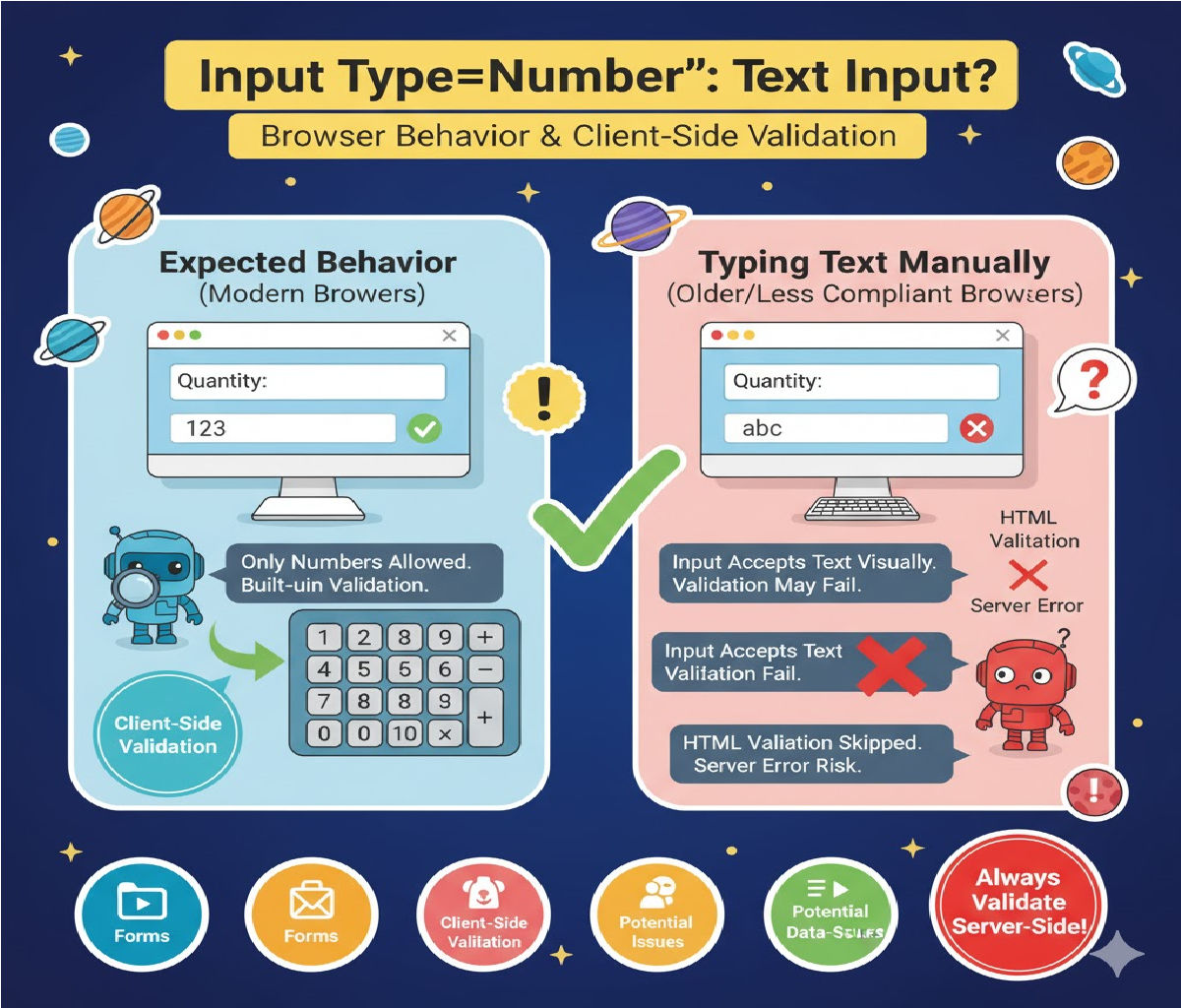
- Users may disable JavaScript
- Browsers can bypass validation
- Malicious users may send invalid data manually
That’s why backend validation is always required.
A server-side script (PHP / Node.js / Python / Java / etc.) must validate fields again before accepting data.
Example PHP:
if (empty($_POST["email"])) {
    echo "Email is required.";
    exit();
}
⭐ 10. Common Mistakes Developers Make
❌ Relying only on JavaScript
If JS is disabled, validation fails entirely.
❌ Missing a name attribute
The browser can't submit the value without it.
❌ Not grouping radio buttons correctly
Radio groups must share the same name.
❌ Using placeholder as a label
Placeholders disappear and confuse users.
❌ Too many required fields
Only mark fields required if truly necessary.
⭐ 11. Complete Example: Required Fields + JavaScript + CSS
Below is a fully working professional example containing everything you learned.
<!DOCTYPE html>
<html>
<head>
<style>
  input:required {
    border-left: 3px solid red;
  }
  .error {
    color: red;
    font-size: 14px;
  }
</style>
</head>
<body>

<h2>Registration Form</h2>

<form id="regForm">
  <label>Name:</label>
  <input type="text" id="name" required>
  <p class="error" id="nameErr"></p>

  <label>Email:</label>
  <input type="email" id="email" required>
  <p class="error" id="emailErr"></p>

  <label>Password:</label>
  <input type="password" id="password" required minlength="6">
  <p class="error" id="passErr"></p>

  <button type="submit">Submit</button>
</form>

<script>
document.getElementById("regForm").addEventListener("submit", function(e){

  let name = document.getElementById("name");
  let email = document.getElementById("email");
  let pass = document.getElementById("password");

  let valid = true;

  if(name.value.trim() === "") {
    document.getElementById("nameErr").innerText = "Name is required.";
    valid = false;
  }

  if(email.value.trim() === "") {
    document.getElementById("emailErr").innerText = "Email is mandatory.";
    valid = false;
  }

  if(pass.value.trim() === "") {
    document.getElementById("passErr").innerText = "Password cannot be empty.";
    valid = false;
  }

  if(!valid) {
    e.preventDefault();
  }

});
</script>

</body>
</html>
This example handles:
- Required HTML fields
- Custom JS validation
- Real-time error messages
- Visual indicators
⭐ Conclusion
Making an input field mandatory before submitting a form is one of the most essential tasks in web development. You can achieve this through:
✔ Browser-level method (recommended)
required attribute
— Fast, simple, and reliable
✔ JavaScript validation
— Gives more control, custom messages, and real-time checks
✔ Server-side validation
— Ensures data integrity and security
✔ Accessibility-friendly design
— Makes your forms usable for everyone
By understanding how each validation layer works and combining them effectively, you can create strong, user-friendly, secure forms for any website or application.
Tags:
Related Posts