What is the role of the <track> element in the <video> tag
HTML5 transformed how multimedia content is delivered on the web. Before HTML5, playing videos required third-party plugins such as Flash or Silverlight. With the introduction of the <video> element, browsers gained native support for video playback without external dependencies. However, video is not only about visuals and sound—it is also about accessibility, usability, and inclusiveness.
This is where the <track> element plays a crucial role.
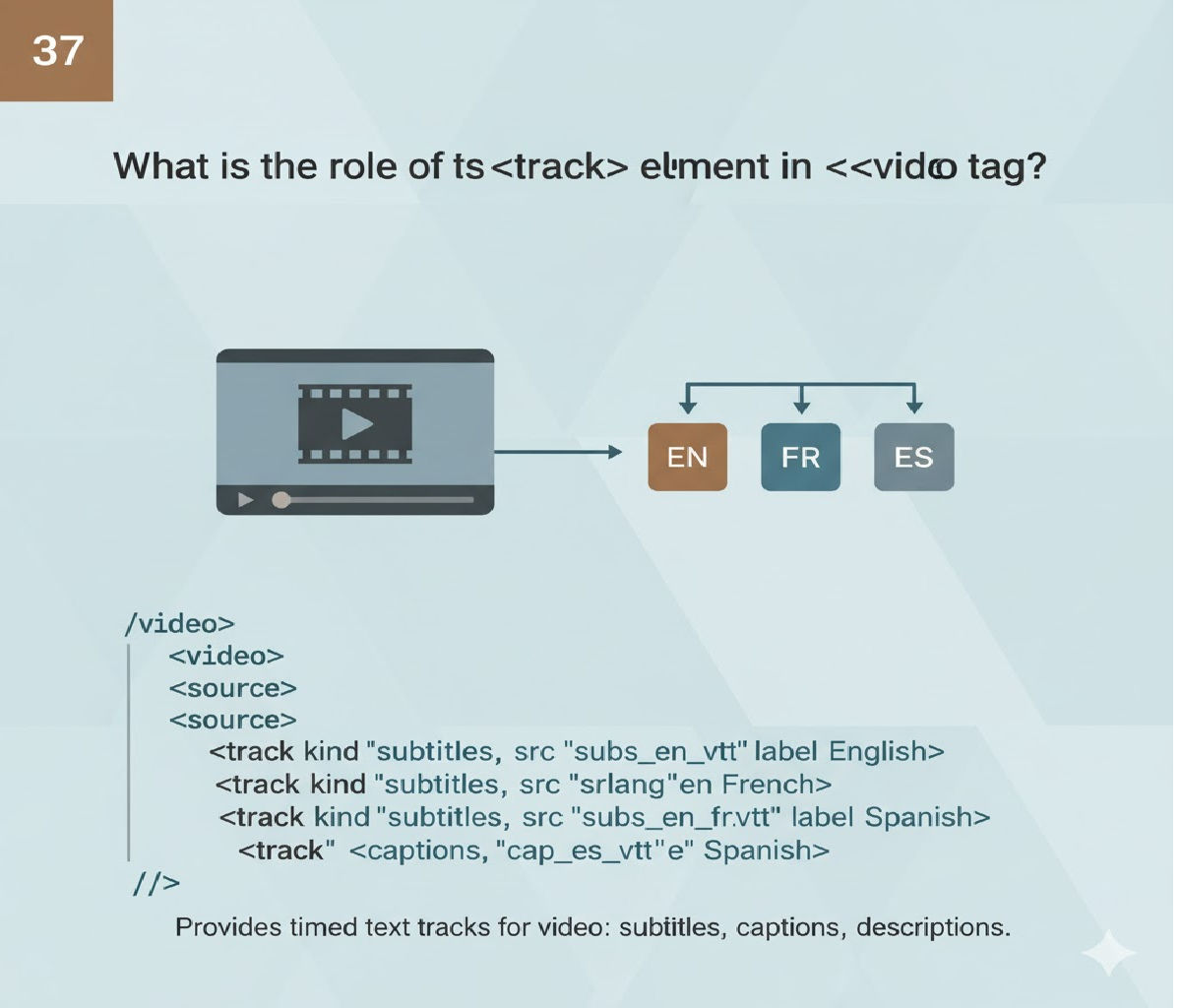
The <track> element is used inside the <video> (or <audio>) tag to provide text-based information such as subtitles, captions, descriptions, chapters, and metadata. It ensures that video content is accessible to people with hearing impairments, non-native language speakers, and users who rely on assistive technologies like screen readers.
In this article, we will explore the role of the <track> element in depth, understand its attributes, types, benefits, best practices, accessibility impact, browser behavior, and see multiple code examples demonstrating its real-world usage.
Understanding the <video> Element
Before diving into <track>, it’s important to understand how it fits into the <video> element.
A basic HTML5 video looks like this:
<video controls width="600">
  <source src="movie.mp4" type="video/mp4">
  Your browser does not support the video tag.
</video>
This allows users to play, pause, control volume, and seek within a video. However, it lacks any text alternatives—making it difficult for users who cannot hear the audio or understand the spoken language.
This limitation is solved by the <track> element.
What Is the <track> Element?
The <track> element is a self-closing HTML element that provides timed text tracks for media elements like <video> and <audio>.
These tracks can include:
- Subtitles
- Captions
- Descriptions
- Chapters
- Metadata
The <track> element does not display anything by itself. Instead, the browser interprets and renders the text at specific times during video playback.
Basic Syntax of the <track> Element
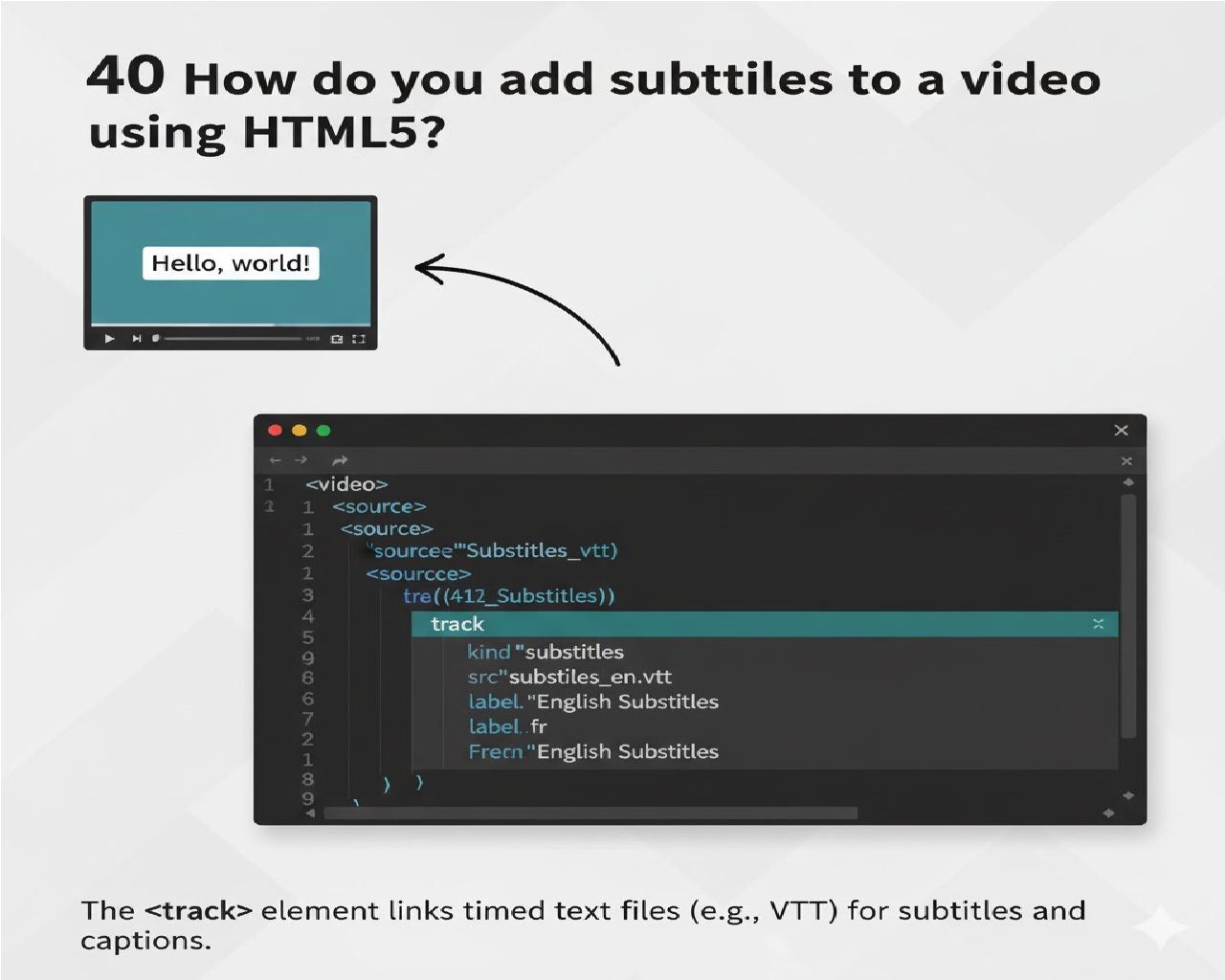
Here is a simple example of <track> used inside a <video> tag:
<video controls width="600">
  <source src="movie.mp4" type="video/mp4">
  <track src="subtitles-en.vtt" kind="subtitles" srclang="en" label="English">
</video>
In this example:
- The video plays normally.
- Subtitles appear at the appropriate time.
- Users can enable or disable subtitles from the video player menu.
The Role of <track> in HTML5 Video
The <track> element serves several important roles:
1. Improving Accessibility
One of the most critical roles of the <track> element is accessibility.
- Deaf and hard-of-hearing users rely on captions.
- Screen readers use descriptive tracks.
- Accessibility guidelines (WCAG) strongly recommend captions for multimedia.
Without <track>, video content excludes a large segment of users.
2. Providing Subtitles for Different Languages
Subtitles help users understand content in languages they are not fluent in.
Example:
<video controls>
  <source src="documentary.mp4" type="video/mp4">
  <track src="subtitles-en.vtt" kind="subtitles" srclang="en" label="English">
  <track src="subtitles-hi.vtt" kind="subtitles" srclang="hi" label="Hindi">
</video>
Users can choose their preferred language from the video player.
3. Supporting Closed Captions
Captions differ from subtitles because they include non-speech audio information, such as:
- [Music playing]
- [Door slams]
- [Applause]
Example:
<track src="captions.vtt" kind="captions" srclang="en" label="English Captions">
Captions are essential for accessibility compliance.
4. Adding Audio Descriptions
The <track> element can provide audio descriptions for visually impaired users by describing visual elements.
<track src="descriptions.vtt" kind="descriptions" srclang="en" label="Audio Descriptions">
These descriptions explain actions, scene changes, and visual details.
5. Creating Chapters for Navigation
Chapters allow users to jump to specific parts of a video, similar to chapters in a book.
<track src="chapters.vtt" kind="chapters" srclang="en" label="Chapters">
This improves navigation, especially in long videos such as tutorials, lectures, or documentaries.
6. Supplying Metadata for Scripts
Metadata tracks are used by JavaScript and are not shown to users.
<track src="metadata.vtt" kind="metadata">
Developers can use this data to trigger events, display dynamic content, or synchronize animations.
Attributes of the <track> Element
The <track> element has several important attributes:
1. src
Specifies the URL of the track file (usually a .vtt file).
<track src="subtitles.vtt">
2. kind
Defines the type of text track.
Possible values:
subtitlescaptionsdescriptionschaptersmetadata
Example:
<track kind="subtitles">
3. srclang
Specifies the language of the track using ISO language codes.
<track srclang="en">
4. label
Provides a readable title shown in the video player.
<track label="English">
5. default
Indicates that this track should be enabled by default.
<track src="subtitles-en.vtt" kind="subtitles" srclang="en" label="English" default>
The WebVTT Format (.vtt Files)
The <track> element typically uses WebVTT (Web Video Text Tracks) files.
Example of a WebVTT file:
WEBVTT

00:00:01.000 --> 00:00:04.000
Welcome to our HTML5 video tutorial.

00:00:05.000 --> 00:00:08.000
In this lesson, we will learn about the track element.
Key features of WebVTT:
- Time-based text
- Human-readable format
- Supported by all modern browsers
- Can include styling and positioning
Complete Example with Multiple Tracks
<video controls width="800">
  <source src="lesson.mp4" type="video/mp4">

  <track src="subtitles-en.vtt" kind="subtitles" srclang="en" label="English" default>
  <track src="subtitles-fr.vtt" kind="subtitles" srclang="fr" label="French">
  <track src="captions.vtt" kind="captions" srclang="en" label="English Captions">
  <track src="chapters.vtt" kind="chapters" srclang="en" label="Chapters">

  Your browser does not support the video tag.
</video>
This example demonstrates how a single video can support multiple user needs.
Accessibility and SEO Benefits
Accessibility Benefits
- Meets WCAG guidelines
- Improves usability for assistive technologies
- Ensures legal compliance in many regions
- Enhances inclusive design
SEO Benefits
While search engines do not directly index <track> text as strongly as page content, captions and subtitles:
- Improve user engagement
- Increase watch time
- Reduce bounce rate
- Enable indexing through transcripts
These indirect benefits positively impact SEO.
Browser Support
The <track> element is supported by all modern browsers:
- Google Chrome
- Mozilla Firefox
- Microsoft Edge
- Safari
- Mobile browsers
Older browsers may ignore it gracefully without breaking video playback.
Best Practices for Using <track>
- Always include captions for accessibility
- Use correct
kindvalues - Provide multiple language tracks if possible
- Set a default track
- Use properly formatted WebVTT files
- Test playback across browsers
- Keep subtitles synchronized accurately
Common Mistakes to Avoid
- Missing
srclangattribute - Using incorrect WebVTT syntax
- Forgetting the
labelattribute - Confusing subtitles with captions
- Not testing accessibility features
Difference Between Subtitles and Captions
| Feature | Subtitles | Captions |
|---|---|---|
| Spoken dialogue | Yes | Yes |
| Sound effects | No | Yes |
| Accessibility | Partial | Full |
| Hearing impaired | No | Yes |
JavaScript Interaction with <track>
Developers can control text tracks using JavaScript:
<script>
  const video = document.querySelector("video");
  const tracks = video.textTracks;

  tracks[0].mode = "showing";
</script>
This allows dynamic control of subtitles, captions, and metadata.
Future of the <track> Element
As accessibility becomes a global priority, the <track> element will continue to grow in importance. With AI-generated captions, real-time translations, and interactive media, <track> will remain central to inclusive multimedia experiences.
Conclusion
The <track> element plays a vital role in the HTML5 <video> tag by providing timed text content such as subtitles, captions, descriptions, chapters, and metadata. It enhances accessibility, improves user experience, supports multiple languages, and ensures compliance with modern web standards.
In today’s web environment, video without <track> is incomplete. Whether you are building an educational platform, streaming service, corporate website, or personal blog, using the <track> element is not optional—it is essential.
By understanding and implementing <track> correctly, developers can create richer, more inclusive, and more professional multimedia experiences for all users.
Related Posts