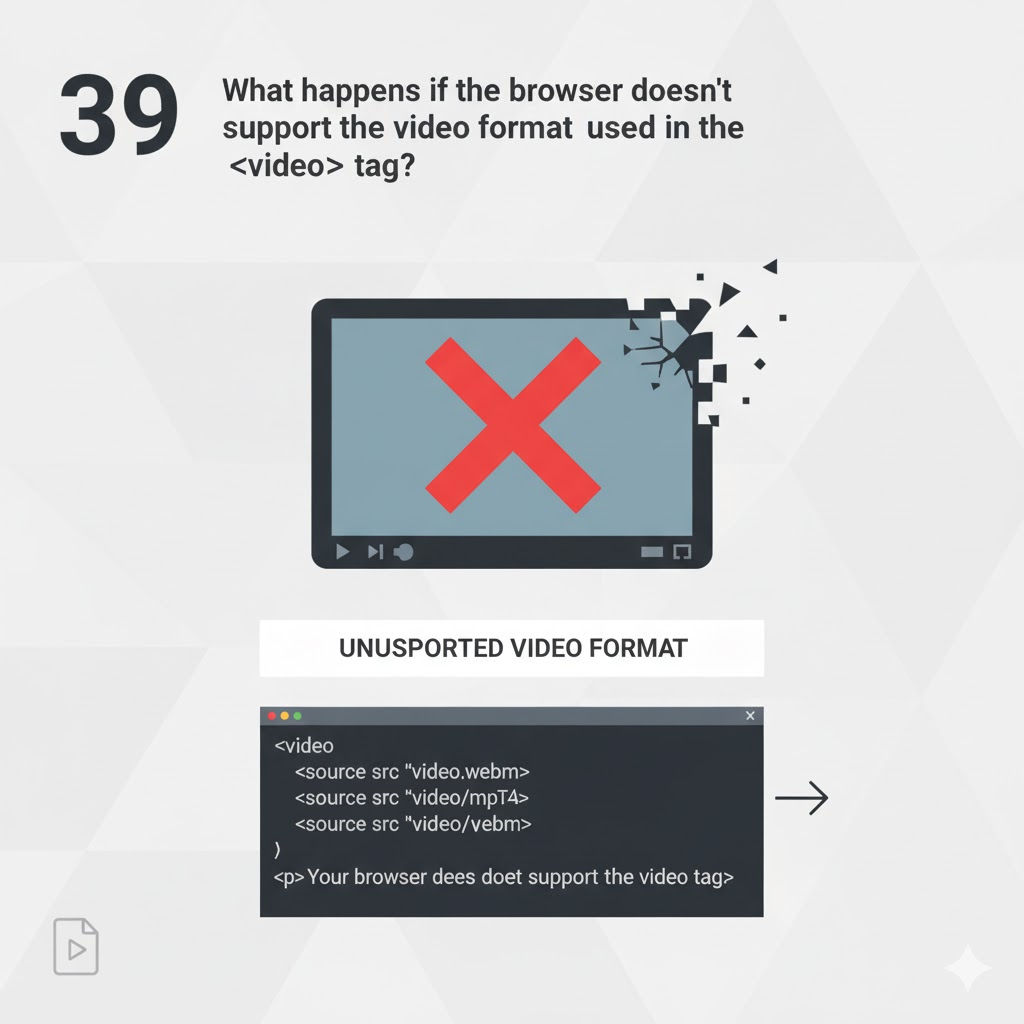
What happens if the browser doesn’t support the video format used in the <video> tag? <video> tag?</video>
The HTML5 <video> tag revolutionized how multimedia content is delivered on the web. Before HTML5, playing videos required third-party plugins like Flash or Silverlight. Today, modern browsers natively support video playback using the <video> element. However, not all browsers support all video formats, and this can lead to playback issues if developers are not careful.
Understanding what happens when a browser does not support a video format—and how to handle it gracefully—is essential for building robust, cross-browser, and user-friendly web applications.
Understanding Video Formats and Browser Compatibility
A video file is not just a single format. It consists of:
- Container format (e.g., MP4, WebM, Ogg)
- Video codec (e.g., H.264, VP9, AV1)
- Audio codec (e.g., AAC, Opus)
A browser must support both the container and the codecs to play the video.
Common Video Formats
| Format | Video Codec | Audio Codec | Typical Support |
|---|---|---|---|
| MP4 | H.264 | AAC | Widely supported |
| WebM | VP8/VP9 | Opus | Chrome, Firefox |
| Ogg | Theora | Vorbis | Limited |
| MP4 | AV1 | Opus | Newer browsers |
If any part of the format is unsupported, playback will fail.
What Happens When a Browser Cannot Play a Video Format?
When a browser encounters a <video> element with an unsupported format, the following occurs:
1. The Browser Attempts to Load the Video
The browser checks:
- Whether it recognizes the
<video>element - Whether it supports the specified video format
If the browser does not support the format, it silently skips it.
2. The Video Does Not Play
- No video appears
- The play button may be disabled
- The media may fail without visible error
The browser does not crash; it simply ignores the unsupported source.
3. The Browser Looks for Alternative Sources
If multiple <source> elements are provided, the browser tries them in order.
<video controls>
  <source src="movie.mp4" type="video/mp4">
  <source src="movie.webm" type="video/webm">
</video>
- If MP4 is unsupported → browser tries WebM
- If WebM is unsupported → browser moves to fallback content
4. Fallback Content Is Displayed
If no supported video format is found, the browser displays the fallback content inside the <video> tag.
<video controls>
  <source src="movie.ogv" type="video/ogg">
  <p>Your browser does not support HTML5 video.</p>
</video>
This ensures users are not left with a blank page.
Behavior in Different Browser Scenarios
Case 1: Browser Supports <video> but Not the Format
<video>element is recognized- Video fails to load
- Fallback text is shown (if provided)
Case 2: Browser Does Not Support <video> at All
(Older browsers like Internet Explorer 8)
<video>tag is ignored- Fallback content is displayed immediately
Case 3: Browser Supports <video> and the Format
- Video loads normally
- Controls, autoplay, and other attributes work as expected
Example: Single Unsupported Format
<video controls>
  <source src="movie.webm" type="video/webm">
</video>
If the browser does not support WebM:
- The video will not play
- Nothing appears unless fallback content exists
Example: Proper Multi-Format Support (Best Practice)
<video controls width="640">
  <source src="movie.mp4" type="video/mp4">
  <source src="movie.webm" type="video/webm">
  <source src="movie.ogv" type="video/ogg">
  <p>Your browser does not support HTML5 video.
     <a href="movie.mp4">Download the video</a>.</p>
</video>
This approach:
- Maximizes browser compatibility
- Ensures graceful degradation
- Improves accessibility and UX
How Browsers Choose a Video Source
Browsers evaluate <source> elements top to bottom:
- Check MIME type
- Check codec support
- Attempt playback
- Move to the next source if unsupported
Once a playable source is found, the browser stops checking.
Detecting Video Support Using JavaScript
JavaScript can be used to check whether a browser supports a given format.
<script>
  const video = document.createElement('video');

  if (video.canPlayType('video/mp4; codecs="avc1.42E01E"')) {
    console.log('MP4 is supported');
  } else {
    console.log('MP4 is not supported');
  }
</script>
Return Values of canPlayType()
"probably"– strong support"maybe"– partial support""– not supported
Why Browsers Don’t Show Errors by Default
HTML5 media elements are designed to:
- Fail silently
- Avoid disrupting page layout
- Provide fallback mechanisms
Developers must proactively handle compatibility.
Real-World Issues Caused by Unsupported Formats
1. Blank Video Area
Users see nothing and assume the site is broken.
2. Play Button Does Nothing
Controls appear but video never starts.
3. Mobile Browser Failures
Mobile Safari supports MP4 but not WebM.
4. Corporate or Legacy Browsers
Older systems may lack modern codec support.
Best Practices to Avoid Video Format Issues
1. Always Provide Multiple Formats
Include at least:
- MP4 (H.264)
- WebM (VP9)
2. Use Correct MIME Types
Incorrect MIME types can prevent playback.
<source src="movie.mp4" type="video/mp4">
3. Include Fallback Content
Never leave the <video> tag empty.
4. Offer a Download Option
Allow users to download the video if playback fails.
5. Test Across Browsers and Devices
Test on:
- Chrome
- Firefox
- Safari
- Edge
- Mobile browsers
Accessibility Considerations
If video playback fails:
- Screen readers rely on fallback text
- Users with assistive technologies need alternatives
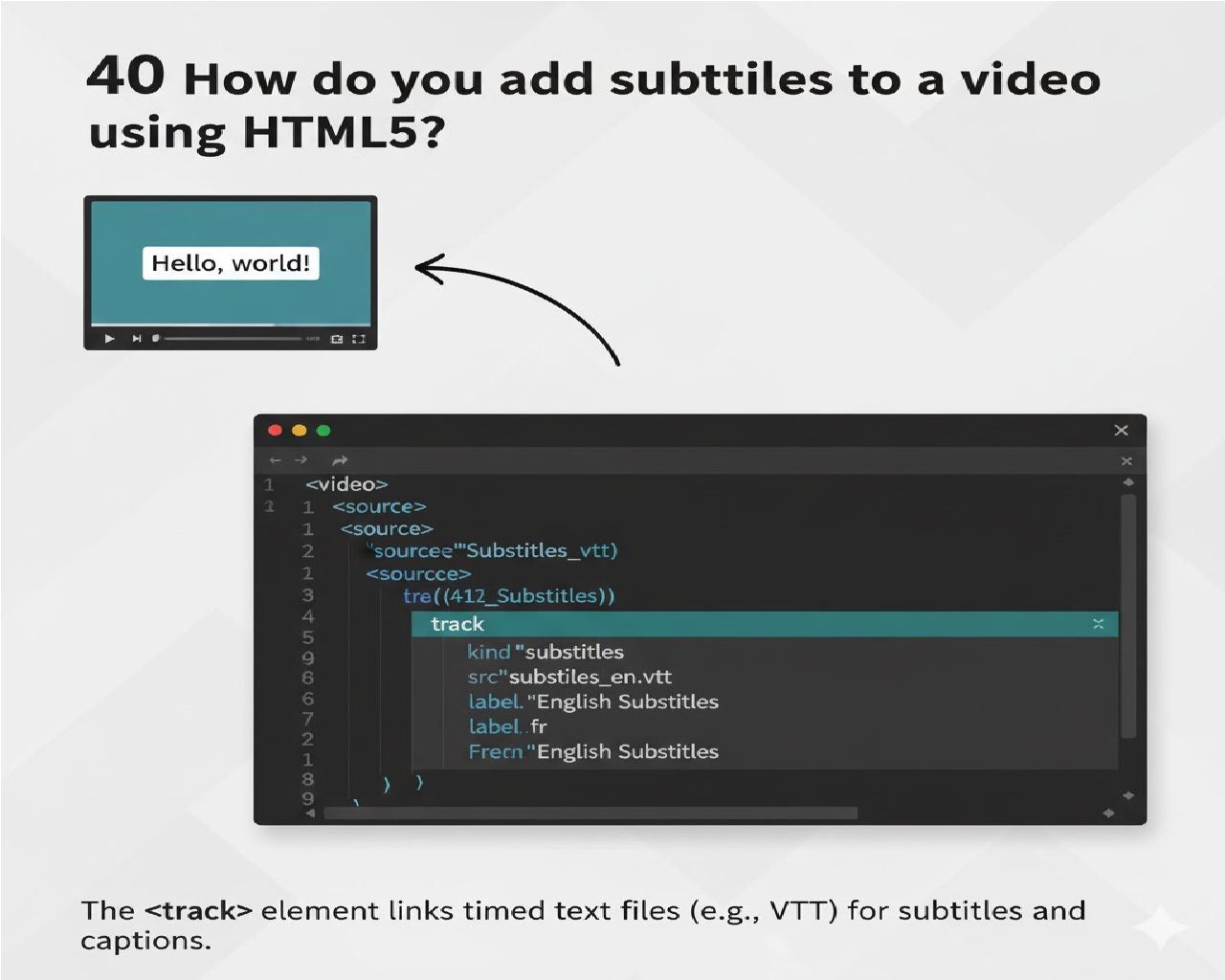
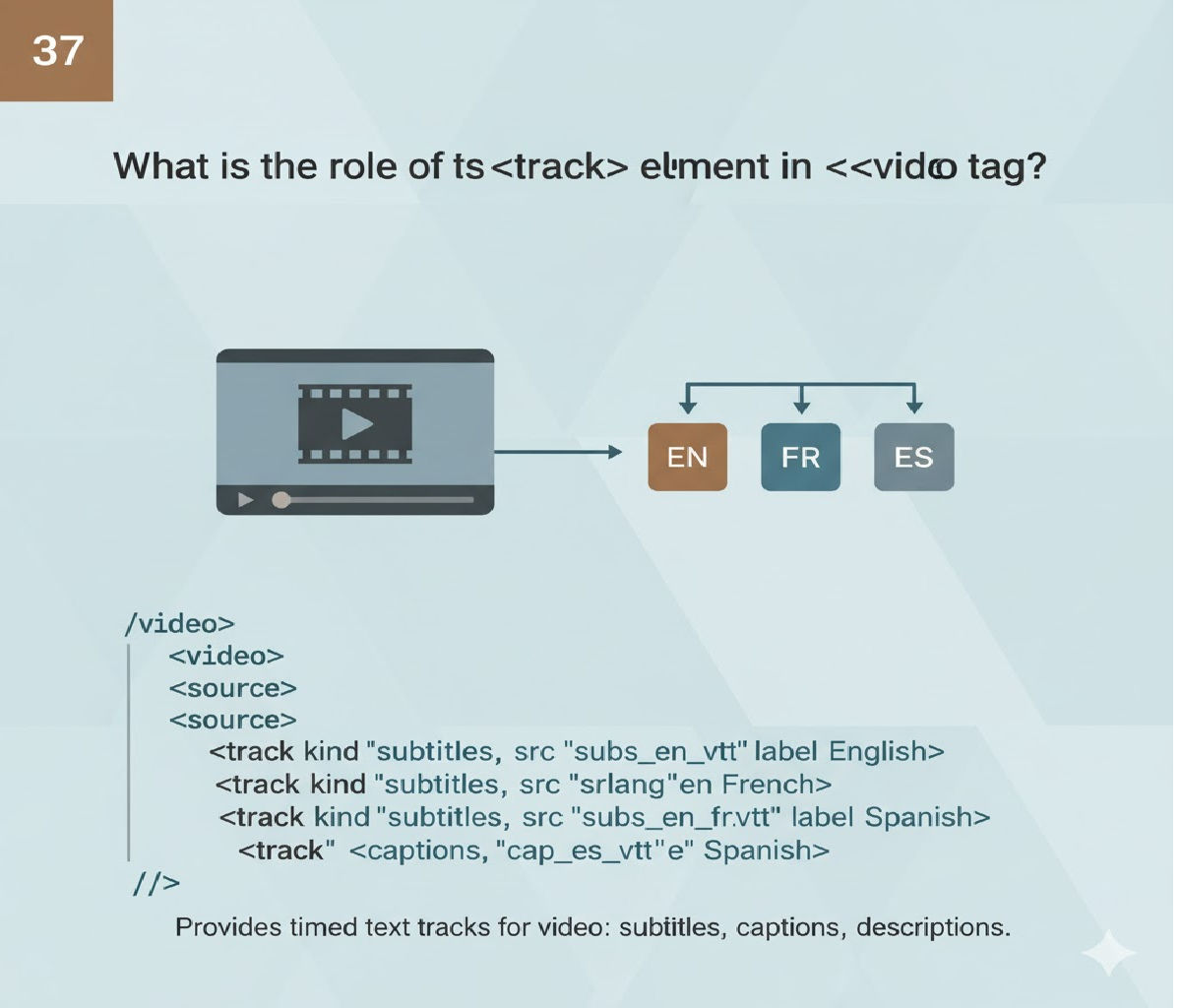
Include captions using <track>:
<video controls>
  <source src="movie.mp4" type="video/mp4">
  <track kind="captions" src="captions.vtt" srclang="en" label="English">
</video>
Even if video fails, captions improve accessibility when supported.
SEO Impact of Unsupported Video Formats
Search engines:
- Do not penalize unsupported formats directly
- Value fallback text and structured content
Best SEO practices:
- Use descriptive fallback text
- Add schema markup
- Ensure video pages degrade gracefully
Common Developer Mistakes
❌ Using only one video format
❌ Omitting fallback content
❌ Incorrect MIME types
❌ Assuming all browsers support WebM
❌ Not testing on Safari or iOS
Summary: What Happens When a Browser Doesn’t Support a Video Format?
- The browser skips the unsupported video
- Tries alternative sources if available
- Displays fallback content if none work
- Does not crash or show explicit errors
- Leaves responsibility to the developer
Conclusion
When a browser doesn’t support the video format used in the <video> tag, playback simply fails unless proper fallbacks are implemented. The browser silently ignores unsupported formats and moves on to the next available option—or displays fallback content if no compatible source exists.
By providing multiple video formats, clear fallback messaging, and proper MIME types, developers can ensure a seamless video experience across all browsers and devices. Understanding this behavior is essential for building reliable, accessible, and professional web applications in modern HTML5.
Related Posts