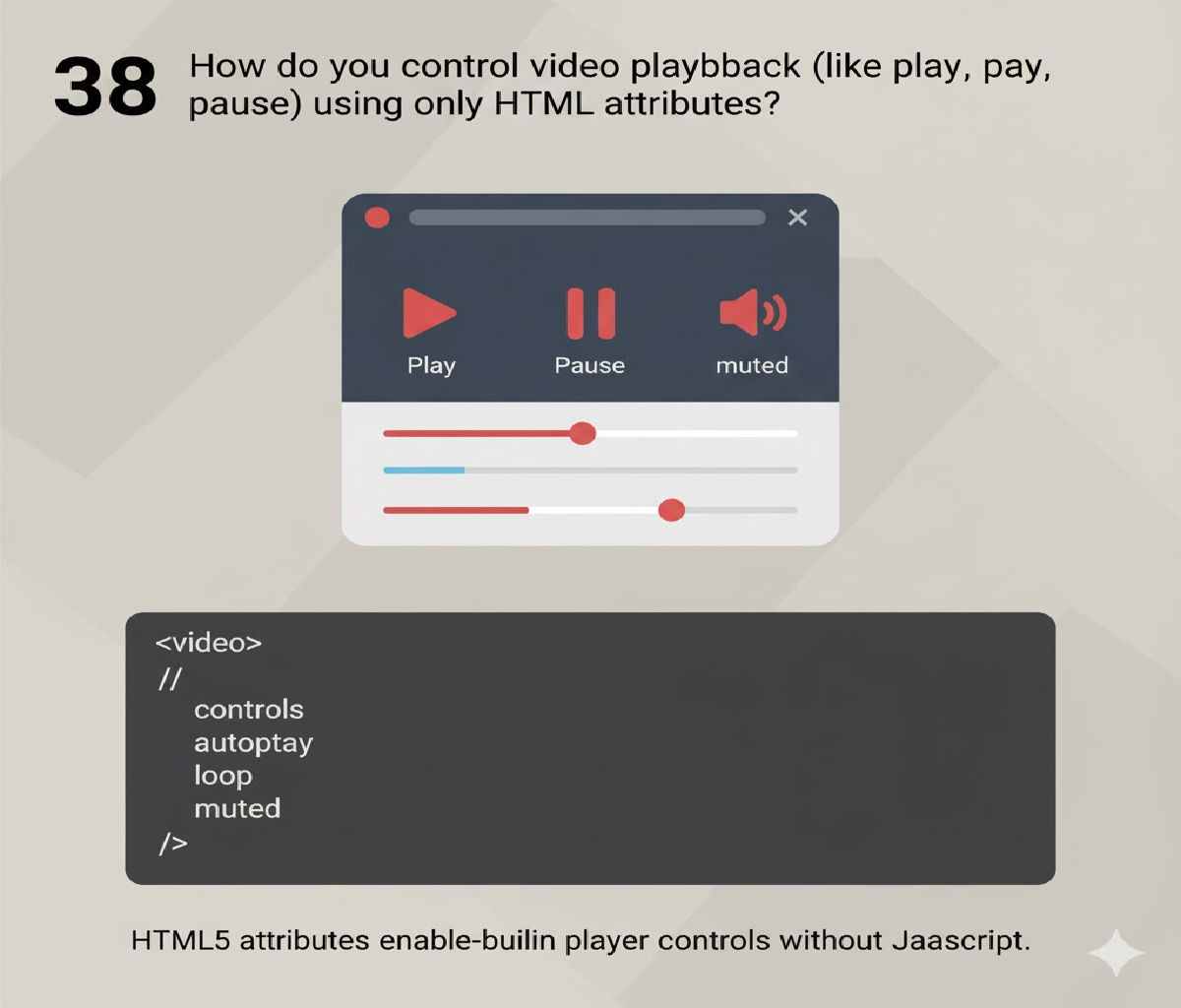
What happens if multiple <main> tags are used in a single document?</main>
The <main> element is a semantic HTML5 element designed to represent the dominant, central content of a webpage. It helps browsers, screen readers, search engines, and other user agents understand which part of the page contains the primary information.
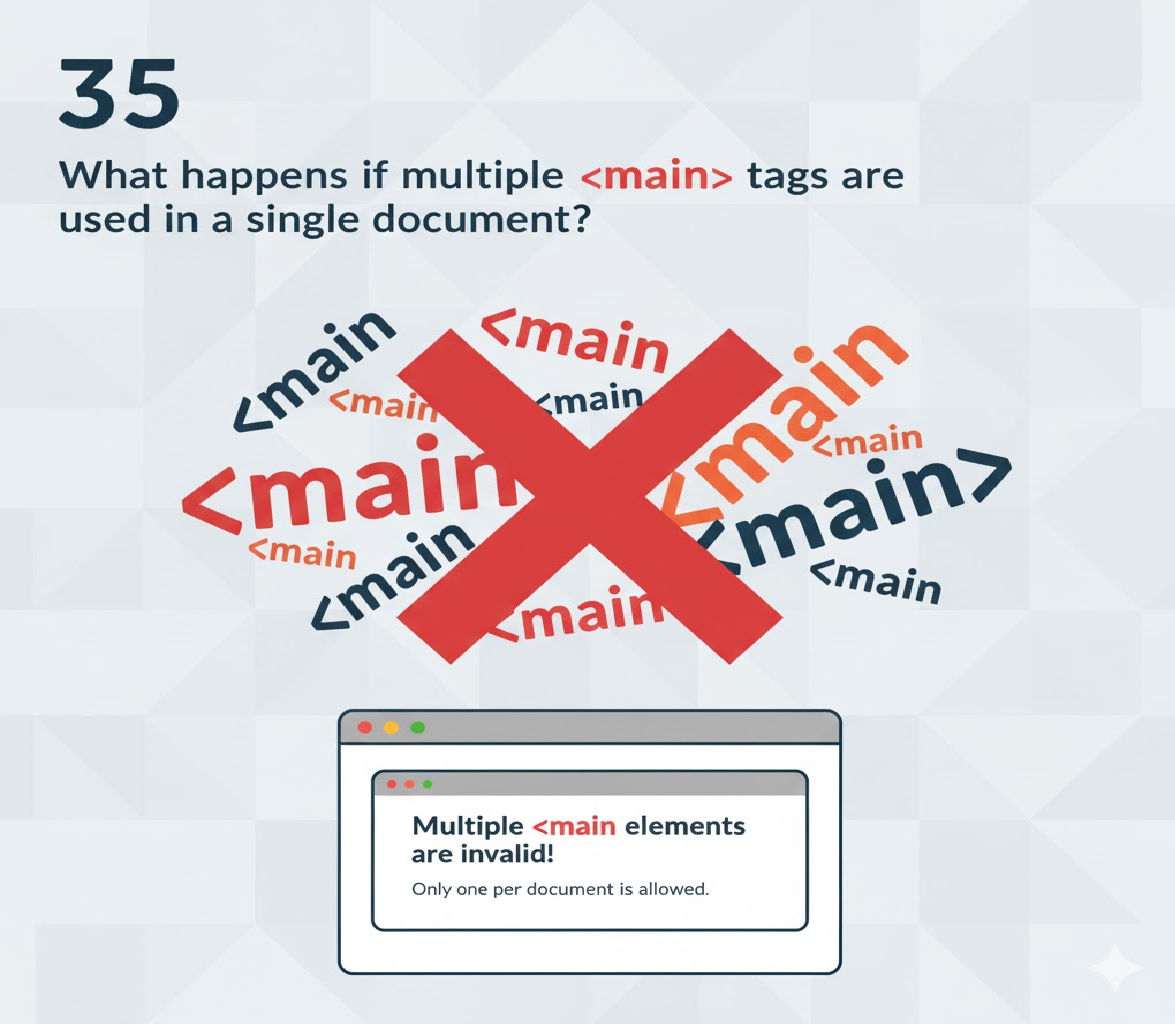
According to the HTML specification, only one <main> element is allowed per document. Using more than one <main> tag breaks semantic rules and can lead to accessibility, SEO, and structural issues.
This article explains what exactly happens, why it matters, and how to fix it, with real-world code examples.
Purpose of the <main> Tag
Before understanding the problem of multiple <main> elements, it’s important to know why <main> exists.
Key Purpose
The <main> element:
- Contains the primary content of the page
- Excludes headers, footers, sidebars, and navigation
- Helps screen readers jump directly to main content
- Improves SEO clarity
- Enhances semantic structure
Typical Content Inside <main>
- Article text
- Blog posts
- Page-specific forms
- Product descriptions
- Primary headings
HTML Specification Rule
The HTML Living Standard states:
A document must not have more than one
<main>element that is not hidden.
This means:
- Only one visible
<main>is allowed - Multiple
<main>elements violate the specification - Browsers may still render the page, but semantics break
Example of Incorrect Usage: Multiple <main> Tags
<!DOCTYPE html>
<html lang="en">
<head>
  <meta charset="UTF-8">
  <title>Multiple Main Tags Example</title>
</head>
<body>

<header>
  <h1>My Website</h1>
</header>

<main>
  <h2>Main Content Section One</h2>
  <p>This is the primary content.</p>
</main>

<main>
  <h2>Main Content Section Two</h2>
  <p>This is another main content area.</p>
</main>

<footer>
  <p>© 2025 My Website</p>
</footer>

</body>
</html>
Why This Is Wrong
- The browser doesn’t know which
<main>is the real main content - Assistive technologies get confused
- The document becomes semantically invalid
How Browsers Handle Multiple <main> Elements
Visual Rendering
- Browsers do not throw errors
- All
<main>elements are rendered normally - CSS styles apply as usual
Behind the Scenes
- Browsers do not enforce semantic correctness
- The page “looks fine” visually
- Problems appear in accessibility tools and SEO parsing
👉 This is why many developers mistakenly think multiple <main> tags are okay.
Accessibility Impact of Multiple <main> Tags
Accessibility is where multiple <main> tags cause the biggest issues.
Screen Readers and <main>
Screen readers allow users to:
- Jump directly to the
<main>region - Skip repetitive navigation
- Understand page structure
What Goes Wrong?
If multiple <main> elements exist:
- Screen readers may:
- Announce only the first
<main> - Announce all
<main>elements, causing confusion
- Announce only the first
- Users lose clarity about:
- Where the primary content begins
- What content is secondary
Example Screen Reader Behavior
A user pressing:
“Jump to main content”
May land:
- On the wrong section
- On only one of several
<main>areas - In an unpredictable order
This violates WCAG (Web Content Accessibility Guidelines) best practices.
SEO Implications of Using Multiple <main> Tags
Search engines rely on semantic HTML to understand content importance.
SEO Problems Caused
- Ambiguity about:
- Which content is primary
- Which text deserves ranking priority
- Reduced semantic clarity
- Potential loss of rich results eligibility
Search Engine Parsing
While Google is forgiving:
- It still expects one main content region
- Multiple
<main>tags dilute content hierarchy - Crawlers may misinterpret page intent
ARIA Role Conflict
The <main> element has an implicit ARIA role:
role="main"
What Happens with Multiple <main> Tags?
- Multiple
role="main"landmarks appear - ARIA landmark rules require unique landmarks
- Assistive technology cannot determine:
- Which landmark is primary
ARIA Best Practice
There should be only one main landmark per page.
HTML Validation Errors
Using multiple <main> tags will result in validation warnings.
Validator Example
HTML validators may report:
- “The
<main>element must not appear more than once” - “Multiple main landmarks detected”
This can affect:
- Code quality checks
- Enterprise compliance
- Accessibility audits
Correct Way: Single <main> with Sections
Instead of multiple <main> tags, use one <main> and divide content with <section> or <article>.
Correct Example
<!DOCTYPE html>
<html lang="en">
<head>
  <meta charset="UTF-8">
  <title>Correct Main Usage</title>
</head>
<body>

<header>
  <h1>My Website</h1>
</header>

<main>
  <section>
    <h2>Introduction</h2>
    <p>This is the main introduction.</p>
  </section>

  <section>
    <h2>Details</h2>
    <p>This section expands the topic.</p>
  </section>
</main>

<footer>
  <p>© 2025 My Website</p>
</footer>

</body>
</html>
Why This Is Correct
- One
<main>defines the primary content <section>organizes subtopics- Clear semantic hierarchy
- Fully accessible and SEO-friendly
Using <article> Inside <main>
For content that stands alone, use <article> inside <main>.
Example
<main>
  <article>
    <h2>News Article</h2>
    <p>This article can be reused or syndicated.</p>
  </article>

  <article>
    <h2>Another Article</h2>
    <p>Independent content inside main.</p>
  </article>
</main>
This structure:
- Preserves semantic meaning
- Avoids multiple
<main>elements - Improves content clarity
Can <main> Be Hidden?
Yes, but with caution.
Hidden <main> Example (Rare Use Case)
<main hidden>
  <p>This content is not visible.</p>
</main>
Important Rule
- Only one visible
<main>is allowed - Hidden
<main>elements are still discouraged - Best practice: avoid multiple
<main>entirely
Common Developer Mistakes
Mistake 1: One <main> Per Component
Developers using frameworks sometimes add <main> inside components.
❌ Wrong:
<main>Component A</main>
<main>Component B</main>
Mistake 2: One <main> Per Page Section
Some think each major section needs a <main>.
❌ Wrong:
<main>Blog</main>
<main>Sidebar Content</main>
Best Practices for Using <main>
Recommended Rules
- Use only one
<main>per document - Place
<main>directly inside<body> - Do not nest
<main>inside:<header><footer><article><section>
- Use
<section>or<article>inside<main> - Avoid styling
<main>as a layout hack
Comparison Table
| Scenario | Valid | Accessible | SEO-Friendly |
|---|---|---|---|
One <main> | ✅ | ✅ | ✅ |
Multiple <main> | ❌ | ❌ | ❌ |
<main> + <section> | ✅ | ✅ | ✅ |
<main> + <article> | ✅ | ✅ | ✅ |
Final Verdict
What Happens If Multiple <main> Tags Are Used?
- ❌ HTML becomes semantically invalid
- ❌ Screen readers get confused
- ❌ Accessibility landmarks break
- ❌ SEO clarity is reduced
- ⚠ Browsers still render the page, hiding the problem
Best Solution
✔ Use one <main> element only
✔ Organize content with <section> and <article>
✔ Follow semantic HTML and accessibility standards
Conclusion
While browsers allow multiple <main> elements to render visually, this does not mean they are correct or safe to use. The <main> tag exists to provide a single, clear entry point to primary content. Breaking this rule undermines accessibility, SEO, and code quality.
For modern, professional, and standards-compliant web development:
- One page = One
<main> - Everything else belongs inside it
Tags:
Related Posts