How do you make a webpage more screen-reader-friendly using ARIA roles?
Creating an accessible website is no longer optional—it is a responsibility and a standard expectation across modern digital platforms. Screen readers, used by millions of visually impaired users worldwide, rely heavily on structured HTML, ARIA roles, and well-designed interaction patterns to understand website content. When a webpage is built without accessibility considerations, a screen reader user may find it impossible to navigate, understand, or interact with crucial elements. This is where ARIA roles (Accessible Rich Internet Applications) come in.
ARIA does not replace semantic HTML but enhances it when native HTML elements are not enough. In this extensive guide, we explore how to make your webpage screen-reader-friendly using ARIA roles, complete with explanations, real-world examples, and production-ready code solutions.
Understanding ARIA: Why It Matters
Before diving into the technical implementation, it’s important to understand what ARIA is and why it exists.
ARIA roles and attributes communicate:
- Element purpose
- State
- Structure
- Hierarchy
- Interactive behavior
Screen readers rely on this information to narrate meaningful context to users. ARIA helps when developers create custom components such as modals, dropdowns, tabs, sliders, or widgets that do not have native equivalents.
But ARIA should be used carefully
The first rule of ARIA is:
“Use native HTML first, ARIA only when required.”
Most accessibility needs are already solved by:
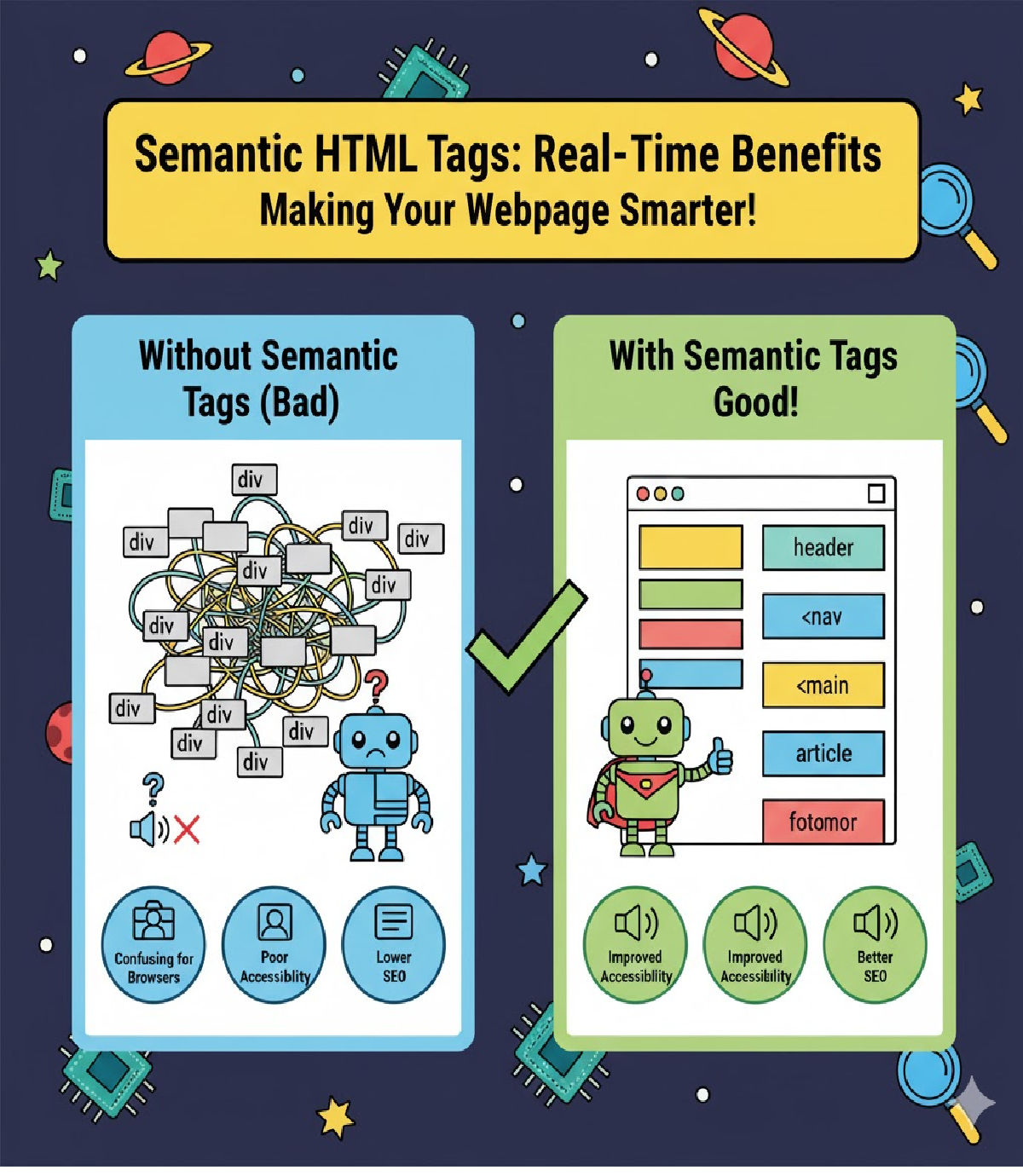
<button><header><nav><main><footer><form><label><table>
Only when HTML cannot express the correct semantics do we turn to ARIA.
Core ARIA Concepts Every Developer Must Know
ARIA includes three major categories:
1. ARIA Roles
Roles define the type or purpose of an element. Examples:
| Role | Purpose |
|---|---|
navigation | Identifies a navigation region |
dialog | Defines a modal dialog |
button | Creates a button role for custom controls |
alert | Announces urgent messages |
tablist, tab, tabpanel | Used for tab components |
2. ARIA States
States indicate conditions that change dynamically.
Examples include:
aria-expanded="true"aria-checked="false"aria-disabled="true"aria-hidden="true"
3. ARIA Properties
Properties add more detail about an element.
Examples include:
aria-labelaria-labelledbyaria-describedbyaria-controlsaria-live
Landmark Roles for Page Structure
Landmark roles give structure to a webpage. Screen reader users often navigate by jumping through landmarks.
Common landmark roles include:
bannernavigationmainsearchcontentinfocomplementary
Code Example: Accessible Page Structure
<body>
  <header role="banner">
    <h1>Accessible Website</h1>
  </header>

  <nav role="navigation" aria-label="Main Navigation">
    <ul>
      <li><a href="#home">Home</a></li>
      <li><a href="#services">Services</a></li>
    </ul>
  </nav>

  <main role="main" id="content">
    <article>
      <h2>Welcome</h2>
      <p>This is an accessible webpage example.</p>
    </article>
  </main>

  <footer role="contentinfo">
    © 2025 Example Company
  </footer>
</body>
Why this helps
Screen readers can:
- Jump directly to navigation
- Skip to main content
- Understand which region they are in
Adding a Skip Link for Keyboard and Screen Readers
A skip link allows users to bypass repetitive navigation.
Code Example
<a href="#main-content" class="skip-link">Skip to main content</a>

<style>
.skip-link {
  position: absolute;
  left: -999px;
}
.skip-link:focus {
  left: 0;
}
</style>
This simple addition dramatically improves accessibility, especially for keyboard users and screen readers.
Forms and ARIA: Making Inputs Understandable
Forms become accessible when labeled properly. Screen readers rely on labels, helper text, and error messages.
Best Practices
- Use
<label>whenever possible - Use
aria-labelonly if a visible label is not suitable - Use
aria-describedbyto connect input to instructions - Use
aria-invalidfor validation errors
Code Example: Accessible Form Input
<label for="email">Email Address</label>
<input id="email" type="email" aria-describedby="email-help" required />
<small id="email-help">We will not share your email with anyone.</small>
Validation Example
<input id="email" aria-invalid="true" aria-describedby="error-email" />
<p id="error-email">Please enter a valid email address.</p>
These attributes ensure the screen reader reads:
“Email Address, invalid entry, Please enter a valid email address.”
Creating an Accessible Modal (Dialog)
Custom dialogs are common, but without ARIA they are invisible to screen readers.
Rules for Accessible Dialogs
- Use
role="dialog"orrole="alertdialog" - Add
aria-modal="true" - Label the dialog using
aria-labelledby - Trap keyboard focus inside
- Restore focus on close
Code Example: Basic Accessible Modal
<button id="open-dialog">Open Dialog</button>

<div id="dialog"
     role="dialog"
     aria-modal="true"
     aria-labelledby="dialog-title"
     hidden>
  <h2 id="dialog-title">Newsletter Signup</h2>
  <p>Subscribe to receive updates.</p>
  <button id="close-dialog">Close</button>
</div>

<script>
const dialog = document.getElementById("dialog");
const openBtn = document.getElementById("open-dialog");
const closeBtn = document.getElementById("close-dialog");

openBtn.onclick = () => {
  dialog.hidden = false;
  dialog.focus();
};

closeBtn.onclick = () => {
  dialog.hidden = true;
  openBtn.focus();
};
</script>
Why this matters
Screen readers announce:
“Dialog, Newsletter Signup…”
This immediately informs the user of a new modal.
Using ARIA Live Regions for Dynamic Content
Some content updates without user interaction—for example:
- Notifications
- Chat messages
- Form updates
- Upload progress
Screen readers won't detect these changes unless you use live regions.
Code Example: Live Region
<div id="status" aria-live="polite"></div>

<script>
function notify(msg){
  document.getElementById("status").textContent = msg;
}

setTimeout(() => {
  notify("Your file has been uploaded.");
}, 3000);
</script>
Choosing the right ARIA live mode
aria-live="polite"→ waits for screen reader to finisharia-live="assertive"→ interrupts immediately
Use assertive only for urgent updates.
ARIA for Custom Widgets (Tabs, Sliders, Menus)
When developers build custom components, ARIA is essential to provide correct semantics.
Example: Accessible Tabs
<div role="tablist">
  <button role="tab"
          aria-selected="true"
          aria-controls="panel1"
          id="tab1">Tab One</button>

  <button role="tab"
          aria-selected="false"
          aria-controls="panel2"
          id="tab2">Tab Two</button>
</div>

<div id="panel1"
     role="tabpanel"
     aria-labelledby="tab1">Content for first tab</div>

<div id="panel2"
     role="tabpanel"
     aria-labelledby="tab2"
     hidden>Content for second tab</div>
Keyboard Navigation Rules
- Arrow keys move between tabs
- Enter/Space activates a tab
- Tab moves into panel content
Following these rules ensures screen-reader users can navigate through the entire component.
Checklist: ARIA Do’s and Don’ts
✔ Do
- Use ARIA when native HTML can't express a behavior
- Ensure every ARIA widget has proper keyboard navigation
- Use
aria-labelonly when necessary - Connect labels and descriptions using
aria-labelledbyoraria-describedby - Test with real screen readers (NVDA, JAWS, VoiceOver)
✖ Don’t
- Use ARIA to fix bad HTML
- Assign roles that conflict with native semantics
- Use
role="button"on an actual<button> - Hide elements using CSS while leaving them focusable
- Use ARIA if a native element exists
Testing Accessibility
No accessibility implementation is complete without testing. Tools help catch issues early.
Recommended Testing Tools
- NVDA (Free, Windows)
- JAWS (Paid, enterprise standard)
- VoiceOver (macOS/iOS)
- Chrome Accessibility Tree
- Lighthouse Accessibility audits
- axe DevTools
- WAVE Web Accessibility Evaluation Tool
Testing with real screen readers gives the most accurate feedback.
Conclusion
Making your webpage screen-reader-friendly using ARIA roles is not only a best practice but also a vital part of building inclusive digital experiences. By prioritizing semantic HTML, adding ARIA enhancements where necessary, and ensuring proper keyboard navigation, you can create interfaces that everyone can use—whether they rely on screen readers, assistive technologies, or standard browsers.
ARIA roles give developers the power to make complex, dynamic web components accessible. But that power must be used responsibly. The golden rule remains:
Tags:
Related Posts