How do you embed a YouTube video in an HTML page?
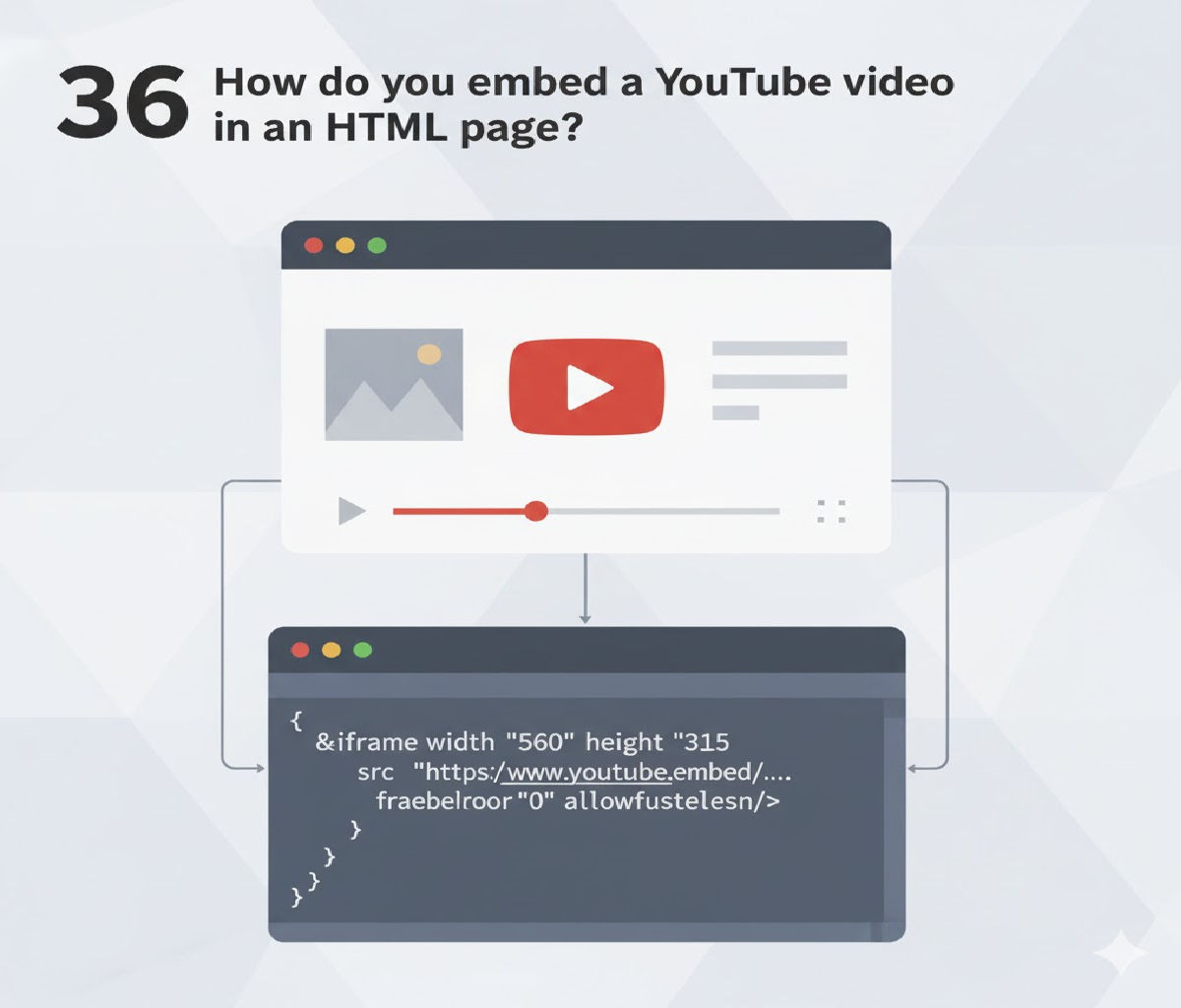
Embedding a YouTube video in an HTML page is one of the most common tasks in modern web development. Whether you are creating a personal blog, an educational website, a business landing page, or a portfolio, embedded videos enhance user engagement, improve content understanding, and increase time spent on the page.
YouTube provides an easy and secure way to embed videos directly into web pages without requiring users to leave your site. HTML supports this functionality primarily through the <iframe> element, which allows external content—like YouTube videos—to be displayed inside a webpage.
In this article, you will learn multiple ways to embed a YouTube video in HTML, including:
- Basic embedding using
<iframe> - Responsive video embedding
- Customizing playback options
- Autoplay, mute, loop, and controls
- Privacy-enhanced mode
- Accessibility best practices
- Common mistakes and troubleshooting
What Does “Embedding a YouTube Video” Mean?
Embedding a YouTube video means displaying and playing a YouTube-hosted video inside your own webpage, rather than redirecting users to youtube.com.
Technically, this works by loading the YouTube video player inside an iframe, which is an HTML element that embeds another webpage within the current one.
The Simplest Way to Embed a YouTube Video
Step 1: Get the Embed Code from YouTube
- Open the YouTube video you want to embed
- Click Share
- Click Embed
- Copy the
<iframe>code provided
Step 2: Paste the Code into Your HTML File
Basic HTML Example
<!DOCTYPE html>
<html lang="en">
<head>
    <meta charset="UTF-8">
    <title>YouTube Video Embed</title>
</head>
<body>

    <h1>My Embedded YouTube Video</h1>

    <iframe
        width="560"
        height="315"
        src="https://www.youtube.com/embed/dQw4w9WgXcQ"
        title="YouTube video player"
        frameborder="0"
        allow="accelerometer; autoplay; clipboard-write; encrypted-media; gyroscope; picture-in-picture"
        allowfullscreen>
    </iframe>

</body>
</html>
This is the standard and recommended way to embed a YouTube video in HTML.
Understanding the <iframe> Attributes
Let’s break down the important attributes:
src
src="https://www.youtube.com/embed/VIDEO_ID"
- This is the embed URL
- Replace
VIDEO_IDwith the actual YouTube video ID
width and height
width="560" height="315"
- Defines the video player size
- Fixed values (not responsive by default)
allowfullscreen
allowfullscreen
- Allows the video to go full screen
allow
allow="autoplay; encrypted-media"
- Controls what browser features the video can access
Making the YouTube Video Responsive
Fixed-width videos do not work well on mobile devices. To fix this, wrap the iframe inside a container and use CSS.
Responsive YouTube Embed (Recommended)
<!DOCTYPE html>
<html lang="en">
<head>
    <meta charset="UTF-8">
    <title>Responsive YouTube Embed</title>

    <style>
        .video-container {
            position: relative;
            padding-bottom: 56.25%; /* 16:9 aspect ratio */
            height: 0;
            overflow: hidden;
            max-width: 100%;
        }

        .video-container iframe {
            position: absolute;
            top: 0;
            left: 0;
            width: 100%;
            height: 100%;
        }
    </style>
</head>
<body>

    <h2>Responsive YouTube Video</h2>

    <div class="video-container">
        <iframe
            src="https://www.youtube.com/embed/dQw4w9WgXcQ"
            title="YouTube video"
            frameborder="0"
            allowfullscreen>
        </iframe>
    </div>

</body>
</html>
This ensures the video scales automatically on all screen sizes.
Autoplaying a YouTube Video
YouTube allows autoplay, but most browsers require the video to be muted for autoplay to work.
Autoplay Example
<iframe
    src="https://www.youtube.com/embed/dQw4w9WgXcQ?autoplay=1&mute=1"
    frameborder="0"
    allow="autoplay"
    allowfullscreen>
</iframe>
Important Notes
- Autoplay without mute may be blocked
- Use autoplay responsibly (UX matters)
Looping a YouTube Video
To loop a video, you must include both loop=1 and a playlist parameter.
<iframe
    src="https://www.youtube.com/embed/dQw4w9WgXcQ?loop=1&playlist=dQw4w9WgXcQ"
    frameborder="0"
    allowfullscreen>
</iframe>
Hiding or Showing Player Controls
Hide Controls
<iframe
    src="https://www.youtube.com/embed/dQw4w9WgXcQ?controls=0"
    frameborder="0"
    allowfullscreen>
</iframe>
Show Controls (Default)
controls=1
Privacy-Enhanced YouTube Embedding
To improve privacy and comply with regulations like GDPR, use YouTube’s nocookie domain.
Privacy-Friendly Embed
<iframe
    src="https://www.youtube-nocookie.com/embed/dQw4w9WgXcQ"
    frameborder="0"
    allowfullscreen>
</iframe>
✔ No cookies are stored until the user interacts with the video.
Embedding YouTube Videos with HTML5 <video> Tag (Not Recommended)
YouTube does not allow direct video file access, so this will not work:
<video controls>
    <source src="youtube-video.mp4" type="video/mp4">
</video>
🚫 This violates YouTube’s terms of service
✔ Always use <iframe>
Accessibility Best Practices
To make embedded videos accessible:
1. Use a Descriptive Title
title="How to Embed YouTube Videos in HTML"
2. Provide Captions
- Enable captions on YouTube
- Or upload subtitles in YouTube Studio
3. Avoid Autoplay with Sound
- Can disrupt screen readers and users
Embedding YouTube Videos Dynamically with JavaScript
<div id="video"></div>

<script>
    document.getElementById("video").innerHTML = `
        <iframe
            src="https://www.youtube.com/embed/dQw4w9WgXcQ"
            frameborder="0"
            allowfullscreen>
        </iframe>
    `;
</script>
Useful when loading videos dynamically or conditionally.
Common Mistakes to Avoid
❌ Using watch URLs instead of embed URLs
❌ Forgetting allowfullscreen
❌ Fixed width causing mobile layout issues
❌ Autoplay with sound
❌ Blocking video via Content Security Policy (CSP)
SEO Considerations for Embedded YouTube Videos
✔ Videos increase dwell time
✔ Use relevant surrounding text
✔ Add schema markup (VideoObject)
✔ Use lazy loading for performance
Lazy Loading Example
<iframe
    loading="lazy"
    src="https://www.youtube.com/embed/dQw4w9WgXcQ"
    frameborder="0"
    allowfullscreen>
</iframe>
When Should You Embed YouTube Videos?
- Tutorials and how-to guides
- Product demonstrations
- Educational content
- Landing pages
- Blog posts and portfolios
Conclusion
Embedding a YouTube video in an HTML page is simple, powerful, and highly effective when done correctly. The recommended approach is to use the <iframe> element with YouTube’s official embed URL, combined with responsive design and accessibility best practices.
By mastering:
<iframe>embedding- Responsive CSS
- Playback customization
- Privacy-enhanced embeds
- Accessibility considerations
You can create modern, professional, and user-friendly webpages that integrate video seamlessly.
Related Posts